 PdferFast PDF reader with OCR, search and printing
Why my own PDF reader?
It started the day Adobe Acrobat Reader installed another Adobe program – I think it was Elements – without me understanding why. I must have clicked a box I actually meant to close, but by then it was already done.
That was the last straw. Reader was slow, sometimes froze when starting or closing, and the things I actually needed – running text recognition on scanned documents and correcting text in a PDF – weren't in the free version. So I uninstalled Acrobat and started building a reader of my own.
Pdfer
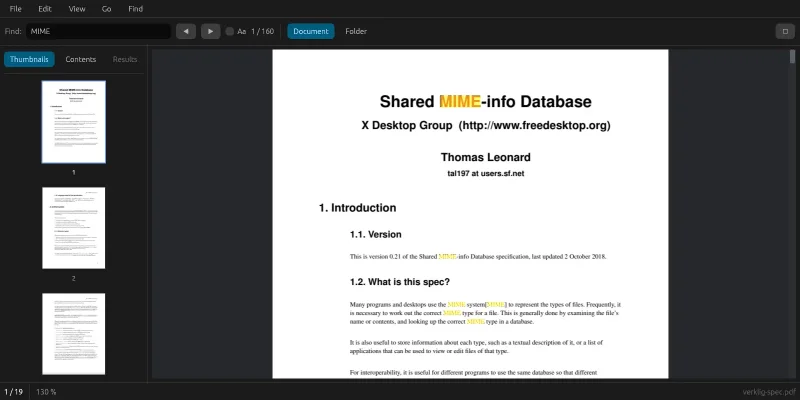
Pdfer is a PDF reader for Windows and macOS where speed comes first: starting up, opening a file and turning pages should feel instant, even in documents with thousands of pages. Besides viewing and paging, it can:
- keep several documents open in tabs, with thumbnails and a table of contents in a sidebar
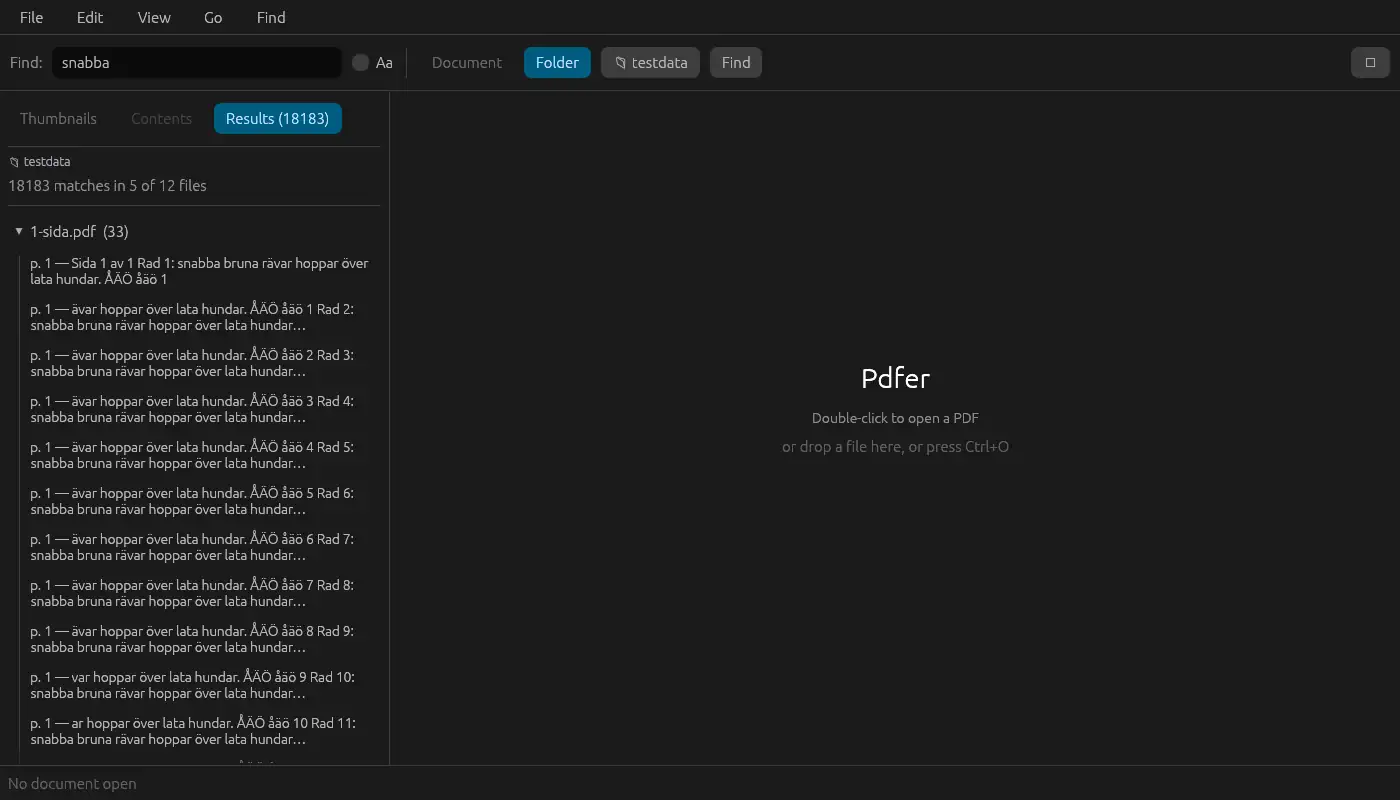
- search the document as you type, or search every PDF in a folder and its subfolders
- run text recognition (OCR) on scanned pages, so they can be searched and selected
- correct existing text in a document, one change at a time, with undo
- print, with page ranges, copies and two-sided printing
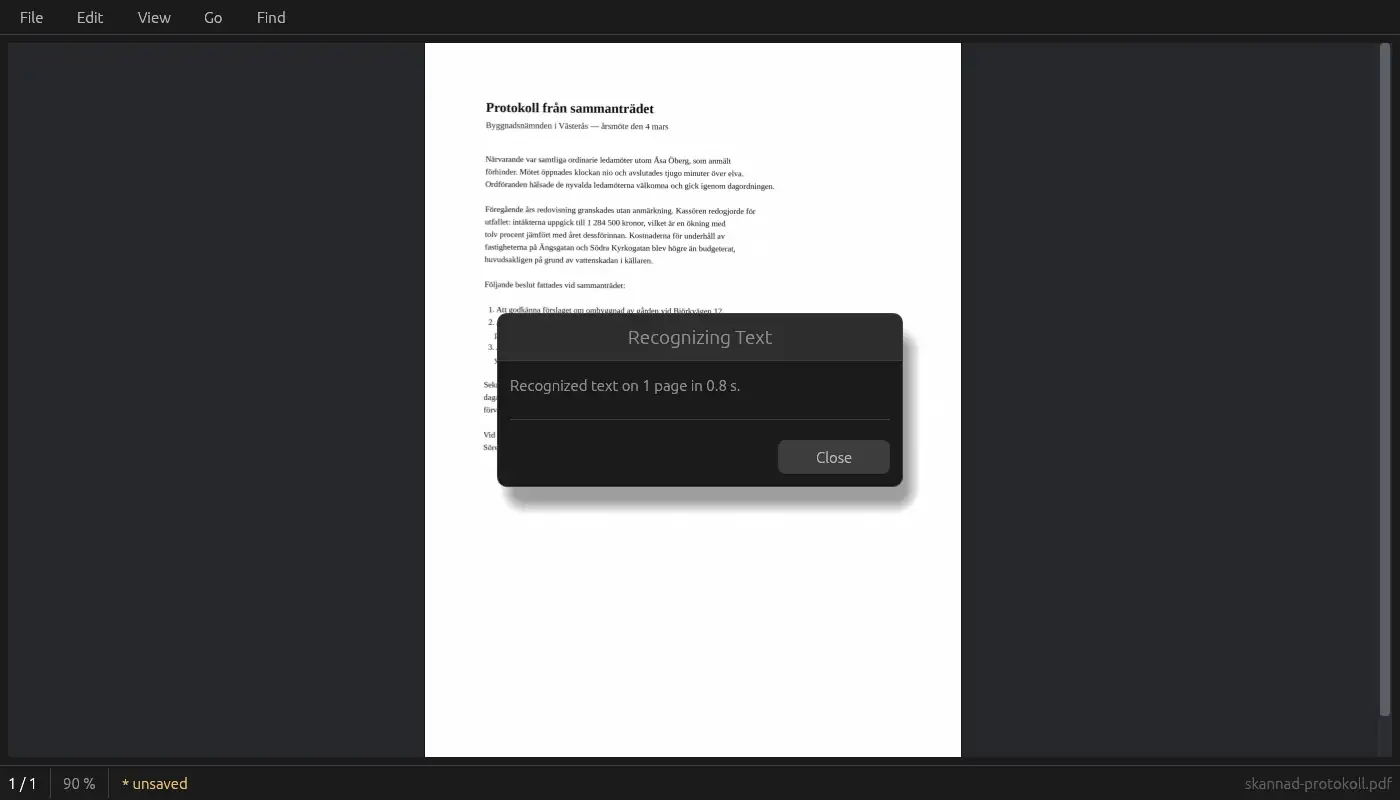
Text recognition writes the text into the document as an invisible layer. Save the file and it becomes searchable in every PDF reader, not just in Pdfer.
The program is built with Claude Code: Rust, PDFium (the same PDF engine as in Chrome) and Tesseract for text recognition, with a custom-drawn interface in egui. The icon was made with Codex. The bindings to both PDFium and Tesseract are written by hand, and there's a simple reason for that. PDFium can't handle being called from several threads at once, so all PDF work happens on a single thread that takes one task at a time and can stop in the middle of a page. That's what keeps a heavy page from ever blocking scrolling.
The numbers were measured during the build: an A4 page renders in 1.4–3.2 ms, a 500-page document opens in 1.8–3.5 ms (the page count makes no difference), and a heavy vector page that used to lock the thread for 5.3 seconds can now be cancelled in about 40 ms.
The work runs from an issue board: I post bugs and requests, Claude Code builds, tests and packages a Windows build, and I try it out before an issue is closed.
Along the way
Ready-made bindings weren't enough. The project started on the pdfium-render library, but it hides the handles you need to cancel a render in progress and to avoid copying every page. So we wrote our own bindings to PDFium.
Two PDF engines at once crashed the program. The first version of Windows printing opened its own PDFium instance alongside the regular one. The result wasn't an error dialog but a hard crash. Now printing also goes through the one thread that is allowed to talk to PDFium.
The OCR engine was chosen by measuring. An OCR engine written entirely in Rust was tempting, but on a Swedish test scan it got 8.7 % of the characters wrong, against 0.00 % for Tesseract – it has no å, ä or ö at all. Every test scan therefore has a reference text next to it, so quality can be measured rather than just judged by eye.
The selection was sideways. In a landscape PDF, text selection ended up a quarter turn off. The page was really a portrait page rotated by a setting in the file, and PDFium reports the page size after the rotation but the character positions before it. Before the fix, only 59 % of the selection boxes covered any text on such a page; after it, more than 95 %.
Landscape pages printed at half size. Printing fitted the landscape page unrotated onto portrait paper, so it shrank to barely half the sheet. Now the page is turned a quarter and fills the sheet.
The window didn't come forward. Double-click a PDF while Pdfer is already running and the file opens as a new tab in the existing window – but if the window was minimised, it stayed there. The first fix didn't work, because the interface library doesn't run the program's code at all while the window is minimised. Now Pdfer asks Windows directly to bring the window forward.
Compared with Acrobat Reader
Acrobat Reader is what I used before and what I wanted to get rid of. What Pdfer does better for me:
- it never installs anything else
- text recognition and text correction are included, at no extra cost
- the installer is 16 MB, PDF engine and OCR included
I haven't measured Acrobat, so I'm not comparing speeds. Pdfer's own numbers are above.
What Acrobat does better: comments, form filling and signing don't exist in Pdfer at all. Text correction is limited to replacing the text in one text object at a time. The program files are unsigned, so Windows shows a warning the first time. On macOS, double-clicking in Finder opens the program without the document, and a selection can't span two pages.
Try it yourself
Under Files you'll find IDEA.md: everything I learned from the build, written as a brief. Give it in full to Claude Code and you have the groundwork for a PDF reader of your own – the stack, the decisions that turned out to matter, the pitfalls above written as rules, the measured numbers to build against, and a ready-made prompt to start from.